
And viewing global and local namespaces configuration
Learning Objectives
1.Part A1: Recognize Symbols Used in a Flowchart and List Logical Process to Solve a Problem
2.Part A2: Draw the Flowchart to Illustrate the Problem Solving ProcessBackground
Required Resources
This lab can be done with paper and pencil or a PC with internet access (or office productivity applications, such as Microsoft Office, LibreOffice, and GoogleDocs).Lab Workshop/Lab 2 Embedded Systems and the Internet of Things EEE_6_ESI
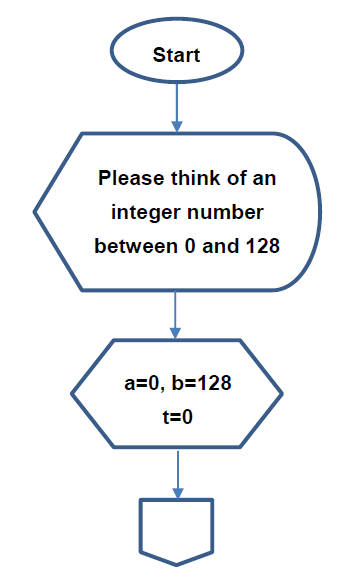
1.Ask the player to think about an integer number between 0 and 128.
2.Set a as the lower end, b as the high end, and t as the time of calculation
| Else |
|---|
2
Lab Workshop/Lab 2 Embedded Systems and the Internet of Things EEE_6_ESI
A2 – Draw the Flowchart
Step 1: Use appropriate flowchart symbols for each functions.
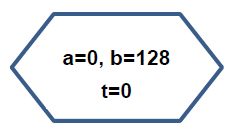
3.Use a predefined process symbol to define a process function or routine:
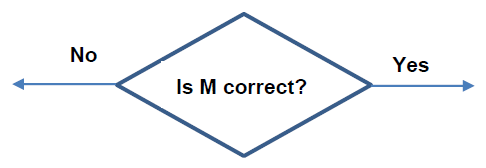
5.Use a process symbol to represent an operation:
4
2.Where should the test for the numbers 0 and 128 be placed?
5
Background
Python, a programming language, allows for simpler statements. Python is very easy to use, powerful, and versatile. It has become the language of choice for many IoT developers. One of the main reasons for the popularity of Python is the developer community. Python developers have created and made available many specific modules that can be imported into any program to immediately lend added functionality.Scenario
In this lab, you will learn and practice some basic Python programming. More specifically, we will use Python version 3 in the lab. As already mentioned, there are several ways to get your own copy of Python 3, depending on the operating system you use. Linux users most probably have Python already installed - this is the most likely scenario, as Python's infrastructure is intensively used by many Linux OS components. If you're a macOS user, a version of Python 2 may already have been preinstalled on your computer, but since we will be working with Python 3, you will still need to download and install the relevant .pkg file from the Python site. Now, begin your Python journey!
Step 1: Python programming in the interactive interpreter.
As an interpreted language, Python commands can be issued in an interactive interpreter.
2.Perform calculations.
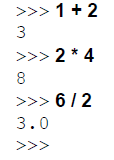
5.Create a variable.
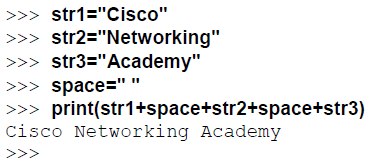
7.Convert data type from a numeric number to a string.
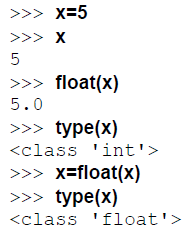

11.Exit interactive interpreter.
B3 – IDLE for Python
Besides its many useful components, the Python 3 standard installation contains a very simple but extremely useful application named IDLE. Navigate through your OS menus, find IDLE somewhere under Python 3.x and launch it.
In Part B3, you will launch IDLE and create a simple script.
3.Type the code in the script print(“Hello World!”), note the codes are colored, and open and close parentheses are matched.
4.Click File -> Save, save the current script as 1.py in the current directory. Click Save button.
More Python Programming
Learning Objectives
1.Core foundations of Python code
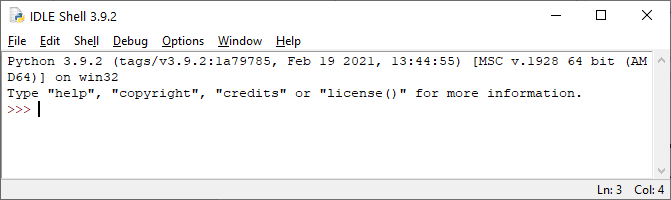
2.Your First Code – Saving and executing your code.1.Start Python 3 interpreter. This opens the Python 3 shell. The shell is where you can enter code and see the responses and output of code you have programmed into Python. This is a kind of sandbox, where you are able to try out some simple code and processes.
4.Now try: print("2+2") - you can see that instead of the number 4, the output is the 2+2 you asked to be printed to the screen. The quotation marks are defining what’s being outputted to the IDLE shell; to print the total of 2 + 2 you need to remove the quotes: print(2+2)
10
6.Write Python code that assigns variables to your first name and then print your
name. Repeat this for your surname and then type a command that prints both your
In Python 3 you can separate the two variables with the space using a comma:
print(name, surname). Alternatively, you can add the space yourself:
imputing single lines of code into the Shell. Instead, the IDLE Editor will allow you
to save and execute your Python code.
you would within the Shell, so taking an example from the previous steps, enter:
print("Hello World!").
Click on the OK button in the Save box and select a destination where you will save
all your Python code. The destination can be a dedicated folder called Python or
IDLE Shell. In this case, the words Hello World!. This is how most of your Python
code will be conducted. Enter it into the Editor, hit F5, save the code and look at the
11
Lab Workshop/Lab 2 Embedded Systems and the Internet of Things EEE_6_ESI
name="Stavros"
surname="Dimitriou"
13.If you click the OK button, the file will be overwritten with the new code entries, and executed, with the output in the Shell. It's not a problem with just these few lines but if you were to edit a larger file, overwriting can become an issue. Instead, use File > Save As from within the Editor to create a backup.
14.Now create a new file. Close the Editor, and open a new instance (File > New File
print(a, b, c)
Executing code from the Command Line
12
Lab Workshop/Lab 2 Embedded Systems and the Internet of Things EEE_6_ESI
Numbers and Expressions
18.You can get some impressive results with the mathematical powers of Python; as with most, if not all, programming languages, maths is the driving force behind the code. In the Shell enter the following to see that Python can handle some quite large numbers:
8/2
2+3*4
21.You can also use an operation to see the remainder left over from division. E.g.:
10//3
absolute values, complex numbers and a host of mathematical expressions and Pythagorean tongue-twisters. Show and explain the output of the following code:
2**4
10**10
bin(3)
format(3, 'b')
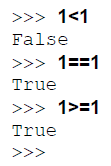
23.The Boolean expression is a logical statement that will either be true or false.What the following coding does?
type(name)
title="I am learning Python"
print (name + ": " + title)
character=name + ": " + title
print(character)
type (age)
print (name + age)
Note that in the last example, you don't need the spaces between the words in quotes as the commas treat each argument to print separately.
28.Another example of TypeCasting is when you ask for input from the user, such as a name. For example enter:
This will TypeCast the age string into an integer that can be worked with. The use of TypeCasting is also important when dealing with floating point arithmetic (numbers that have a decimal point in them). For example, enter shirt=19.99 and then enter type(shirt) and you will see that Python has allocated the numbers as a float, because the value contains a decimal point.
30.When combining integers and floats Python usually converts the integer to a float, but should the reverse ever be applied it’s worth remembering that Python doesn't return the exact value. When converting a float to and integer, Python will always round down to the nearest integer, called truncating; in our case instead of 19.19 it becomes 19 (when you enter int(shirt).
print ("Thanks.")
surname=input("And what is your surname? ")
Lab Workshop/Lab 2 Embedded Systems and the Internet of Things EEE_6_ESI
print ("Welcome", firstname, surname+ ". I hope you are well today. " )
34.You don't always have to include quoted text within the input command. For example, you can ask the user their name and have the input in the line below: print ("Hello. What is your first name? ")
name=input()
Try also this:
print ("Halt! Who goes there? ")
name=input()
35.It's a good start to a text adventure game, perhaps? Now you can expand on it and use the raw input from the user to flesh out the game a little:
If name=="Name"):
print ("Welcome, good sir. You may pass." )
else
print ("I know you not. Prepare for battle!." )
36.Any input from user is automatically a string, so you need to apply a Typecast in order to turn it into something else. This creates some interesting additions to the input command. For example:
# Code to calculate rate and distance
print ("Input a rate and a distance")
rate = float(input("Rate: "))
37.To finalise the rate and distance code, you can add:
Distance = float(input("Distance: "))
print ("Time: ", (distance / rate))